Ubiquiti Conversion Guide
Data-Only Mobile configuration requires the Passpoint protocol. Please ensure your Ubiquiti network is using UniFi Network Controller version 8.4.54 or higher and AP firmware version 6.6.77 or AP firmware version 7.0.66 or higher, depending on the hardware release track.
Obtain RadSec Certificates
Each onboarded network requires a unique NAS-ID. For Ubiquiti networks, it is recommended to use the MAC address of the network controller as the NAS-ID.
Run the UniFi network controller locally or log into the cloud UniFi Site Manager.
Navigate to UniFi Devices, choose your Network Controller and copy the MAC Address.
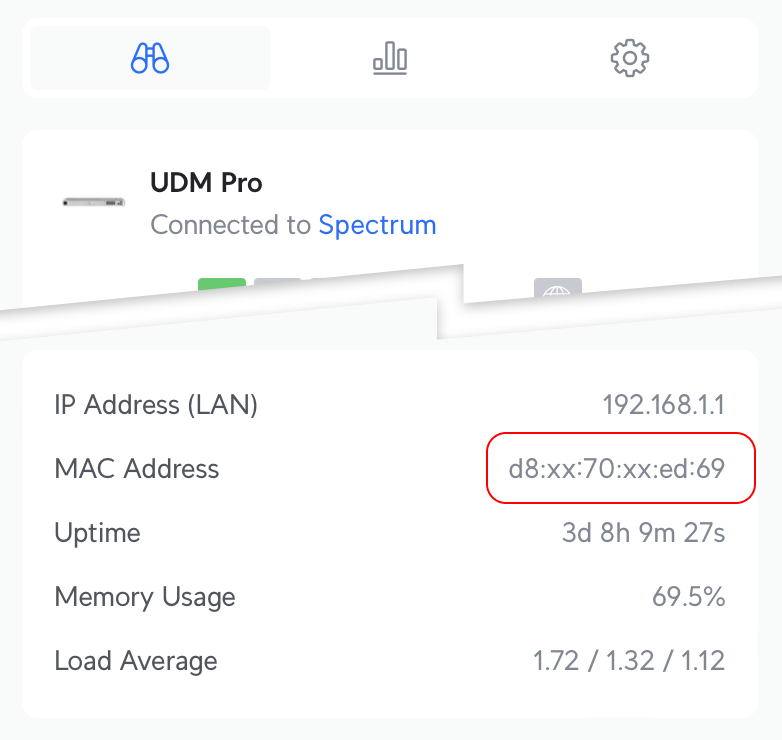
Use this NAS-ID in the WiFi Conversion Onboarding flow and return to this guide after the network is onboarded and certificates have been delivered.
If early access certificates were previously deployed on the network, a Ubiquiti bug may prevent new
certificates from propagating.
Restart all APs on the network after updating the certificates, and the new certificates should be
applied.
Configure UniFi Network Controller
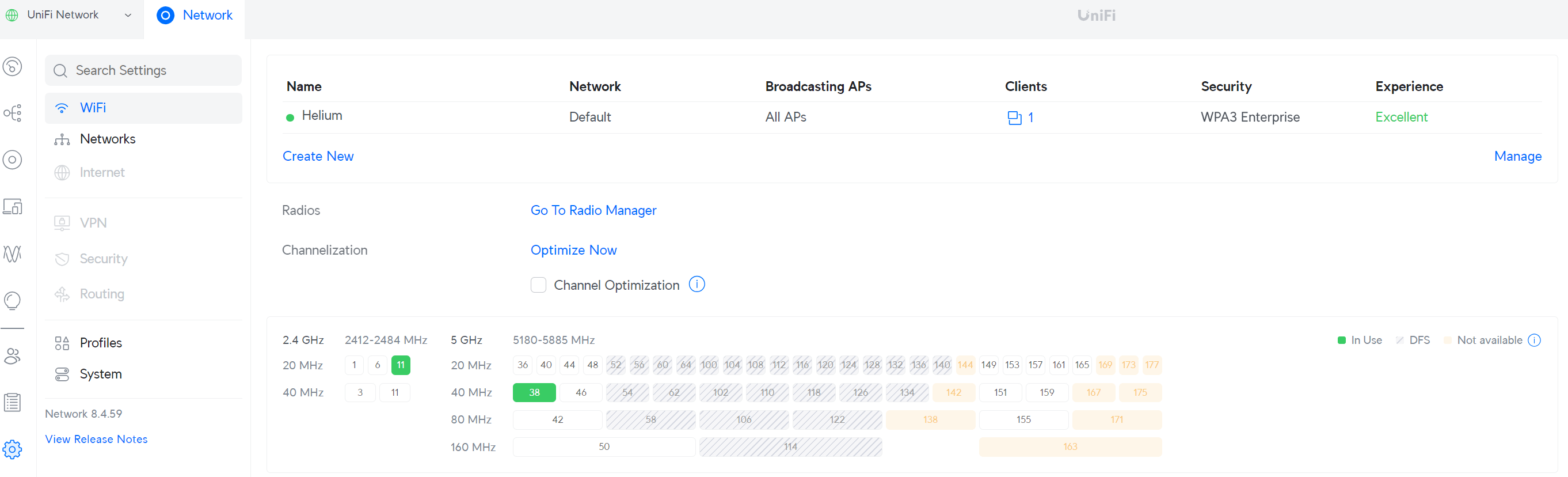
After retrieving certificates, configuration is a two-part process: create the RADIUS profile, then apply it to a new Wi-Fi SSID named Helium.
Create a RADIUS Profile
Configure a TLS connection to the Helium Cloud AAA server (aka Radiator), which performs Authentication, Authorization, and Accounting for the end customers. Enabling RADIUS communication over TLS (RadSec) increases the level of security for authentication that is carried out across the cloud network.
In the sidebar, choose Settings, then Networks, then scroll to the bottom to Radius Servers.
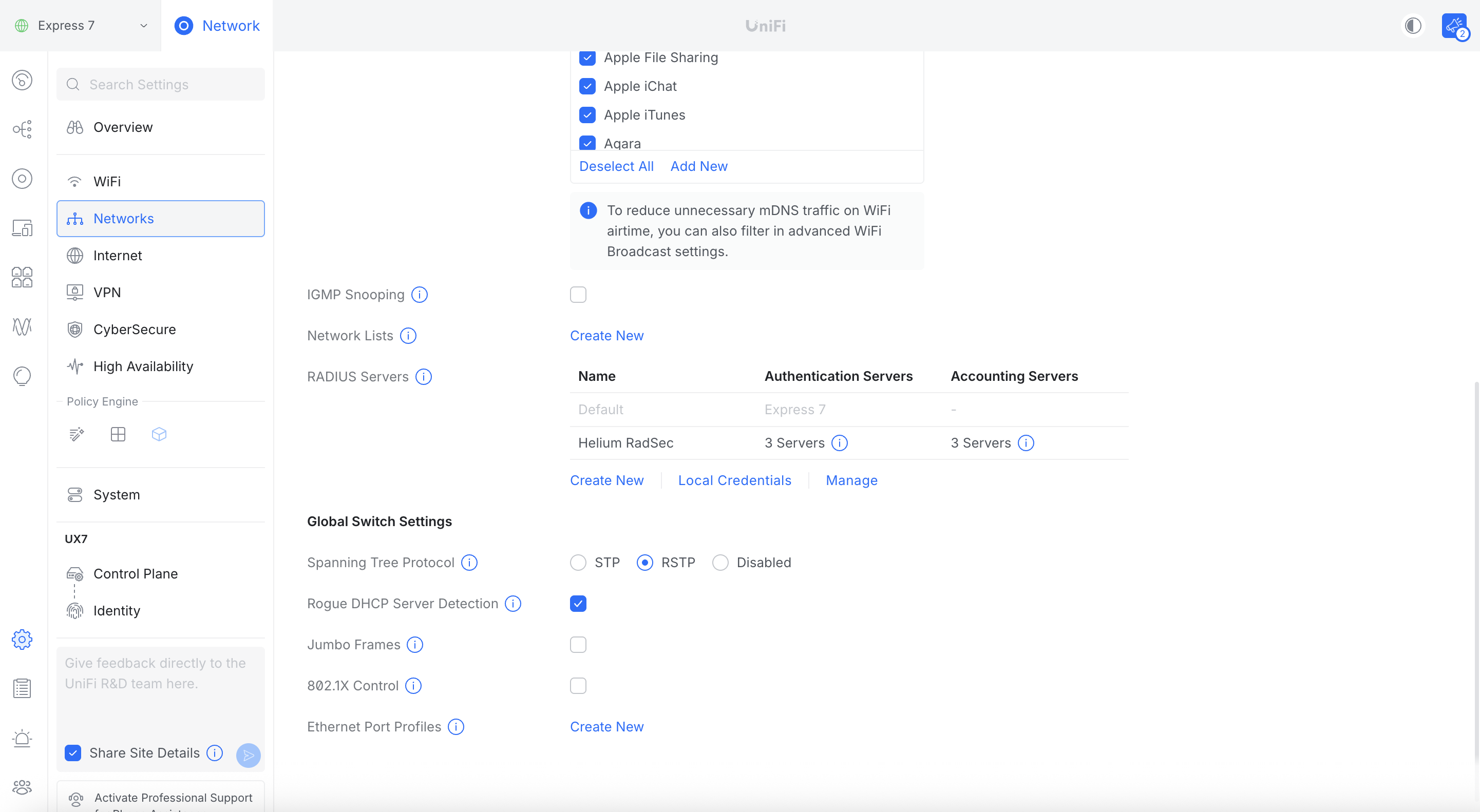
Click Create New.
Specify a profile name, for example "Helium RadSec".
Configure RADIUS properties:
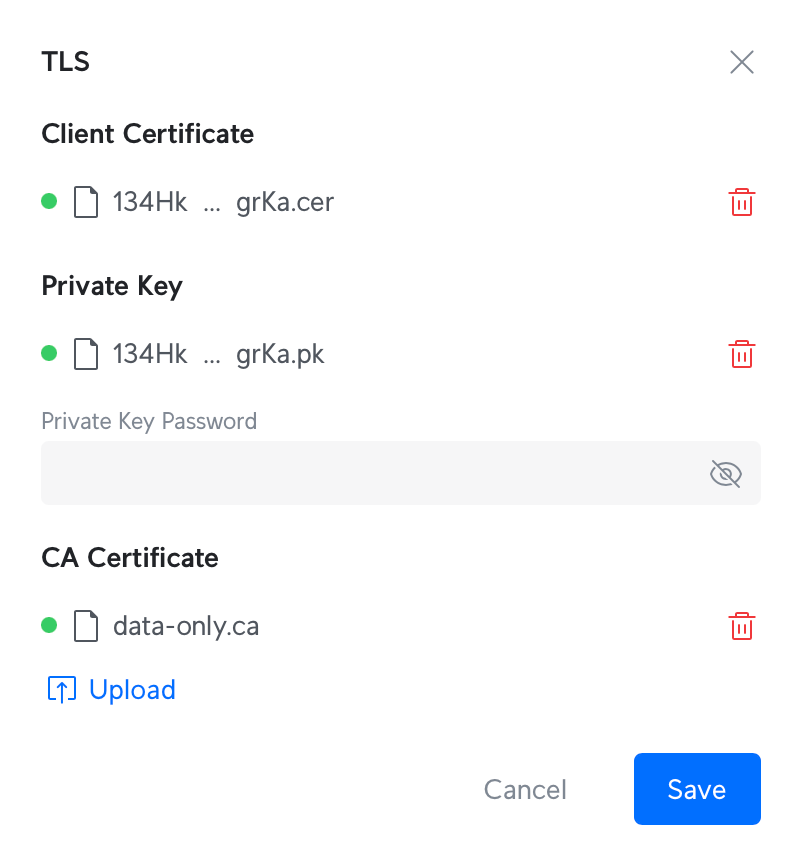
- Under Radius Settings, check the TLS box.
- Click Upload next to Client Certificate, choose the path to
cert.pem. - Click Upload next to Private Key, choose the path to
key.pem. Leave the Private Key password empty. - Click Upload next to CA Certificate, choose the path to
ca.pem.
- Click Upload next to Client Certificate, choose the path to
-
Specify Authentication Servers:
Add these three servers:
- Enter IP Address:
52.37.147.195Port:2083Shared Secret:radsec. Click Add. - Enter IP Address:
44.229.62.214Port:2083Shared Secret:radsec. Click Add. - Enter IP Address:
44.241.107.197Port:2083Shared Secret:radsec. Click Add.
- Enter IP Address:
-
Check the Accounting checkbox. RADIUS Accounting Server settings will appear.
If the Accounting Servers checkbox is greyed out as in the image below, create the RADIUS profile
with only the Authentication Servers, save, then reopen and edit the profile to add Accounting
Servers. This is a current Ubiquiti UI bug. Accounting checkbox greyed out. Workaround: save and reopen the RADIUS profile.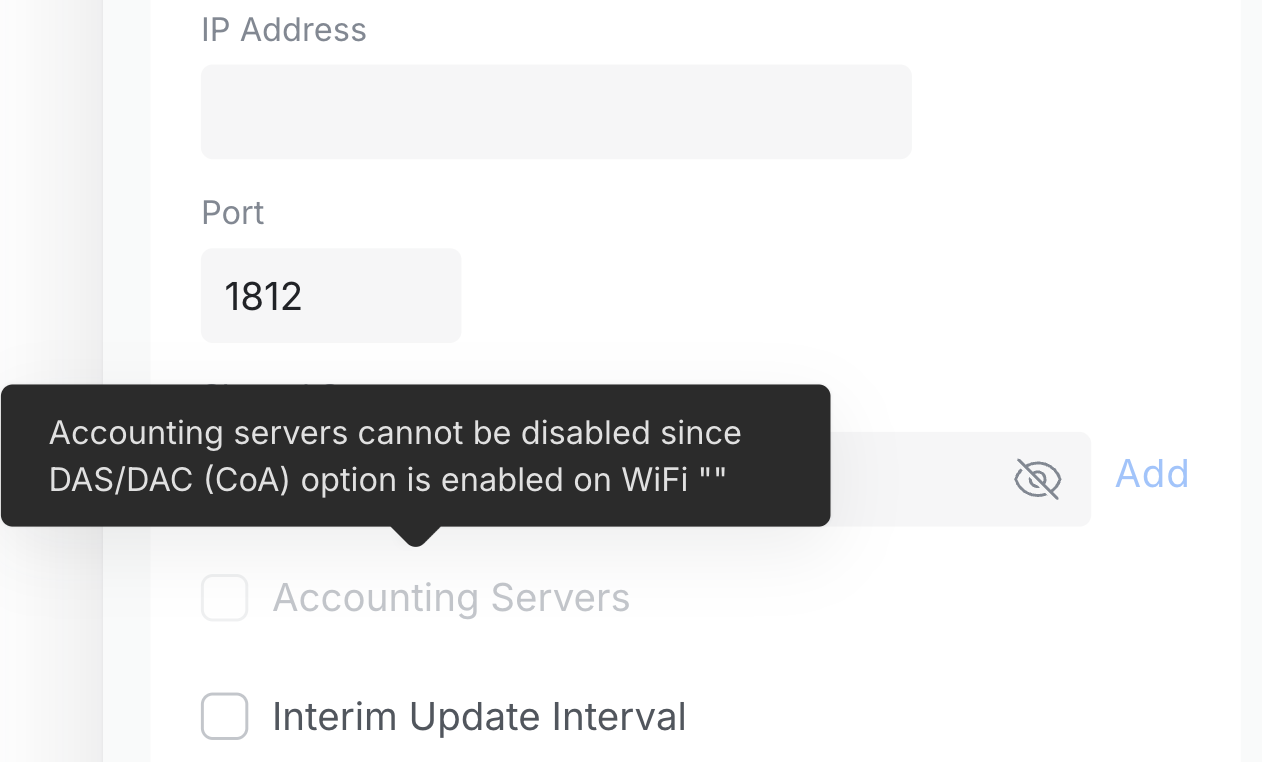
-
Specify the following Accounting Servers:
-
Enter IP Address:
52.37.147.195Port:2083Shared Secret:radsec. Click Add. -
Enter IP Address:
44.229.62.214Port:2083Shared Secret:radsec. Click Add. -
Enter IP Address:
44.241.107.197Port:2083Shared Secret:radsec. Click Add. -
Check the Interim Update Interval box.
-
Set Interim Update Interval to 300 seconds (standard for the Helium Network).
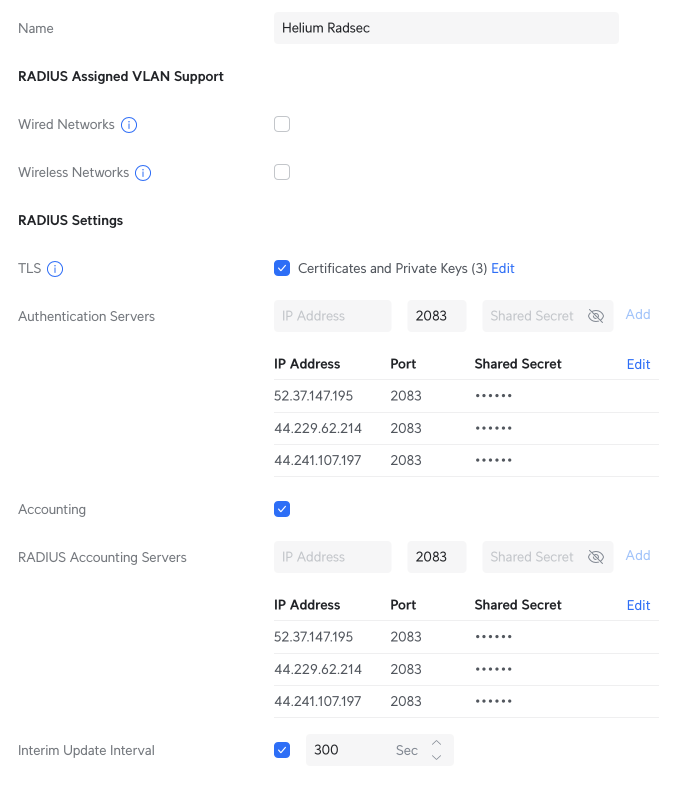
Click Apply Changes to create the new RADIUS profile.
Create the Helium SSID
Navigate to Settings in the sidebar, choose WiFi, then click Create New.
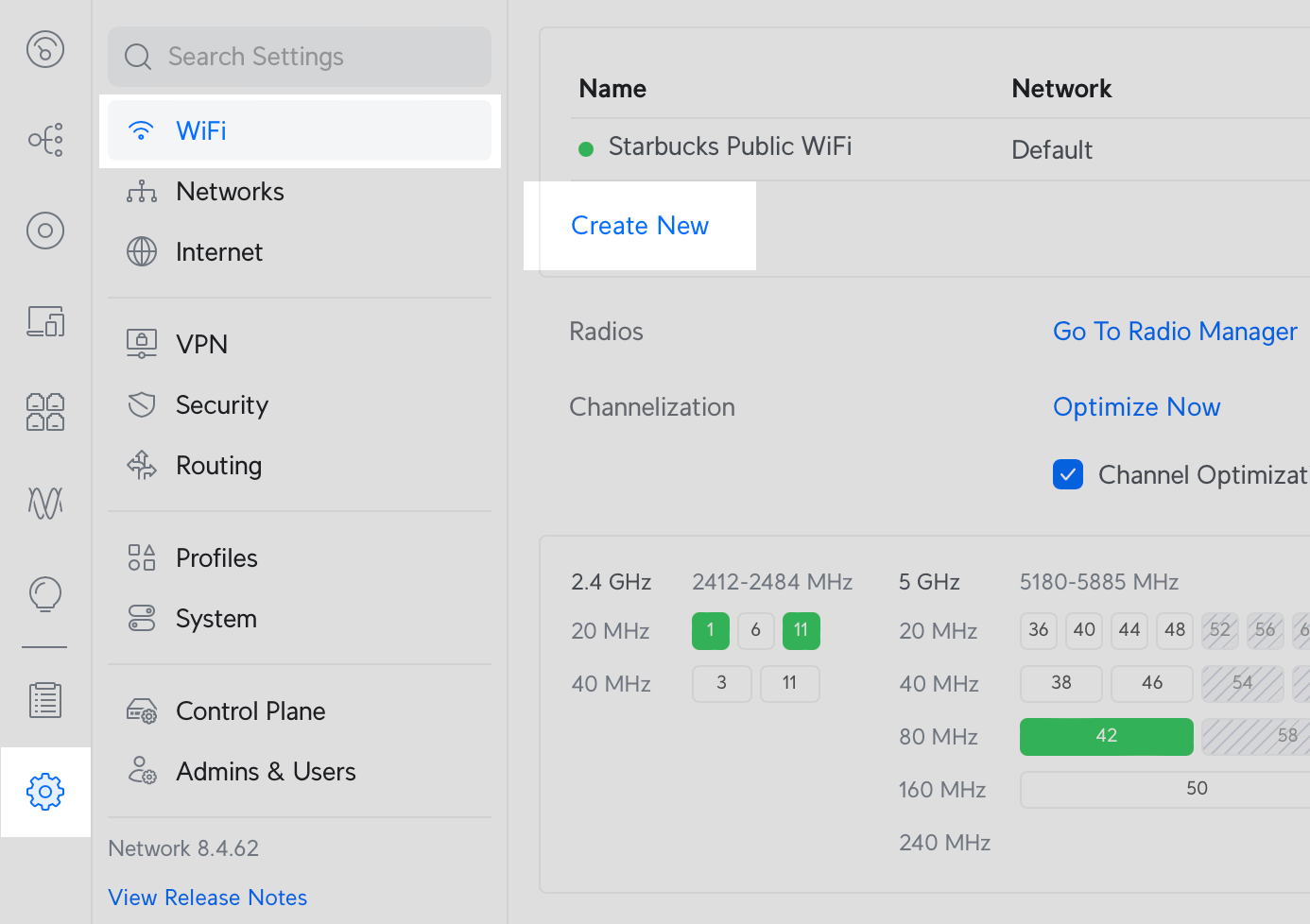
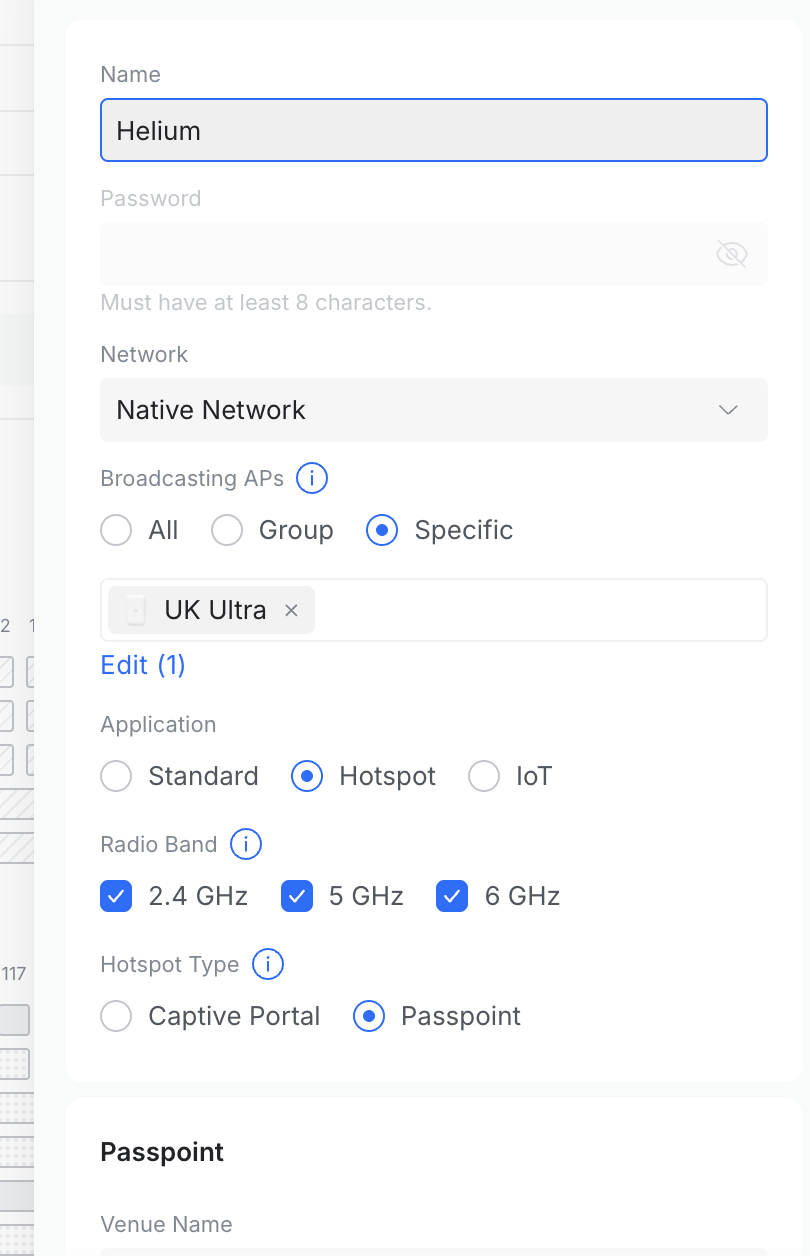
Configure settings for the new network.
- Set the Name of the SSID to
Helium. Leave the password blank. - Under Application select Hotspot.
- Under Hotspot Type select
Passpoint. Passpoint settings will appear below. - Specify Venue Name to a name for your site.
- Specify Venue Type with the option that best matches your site.
- Set Network Type to
Chargeable Public Network. - Set IP Address Type Availability:
- IPv4 to
Double NATed private IPv4. - IPv6 to
Unavailable.
- IPv4 to
- Add NAI Realms with the following two entries:
- Name:
freedomfi.comEAP Method:EAP-TLSSub-Methods:Certificate. - Name:
hellohelium.comEAP Method:EAP-TLSSub-Methods:Certificate.
- Name:
- In Domain List, add
freedomfi.com(or your home domain if applicable). Click Add.
-
Set Security Protocol to
WPA3 Enterprise. -
Choose External RADIUS Profile: Helium RadSec.
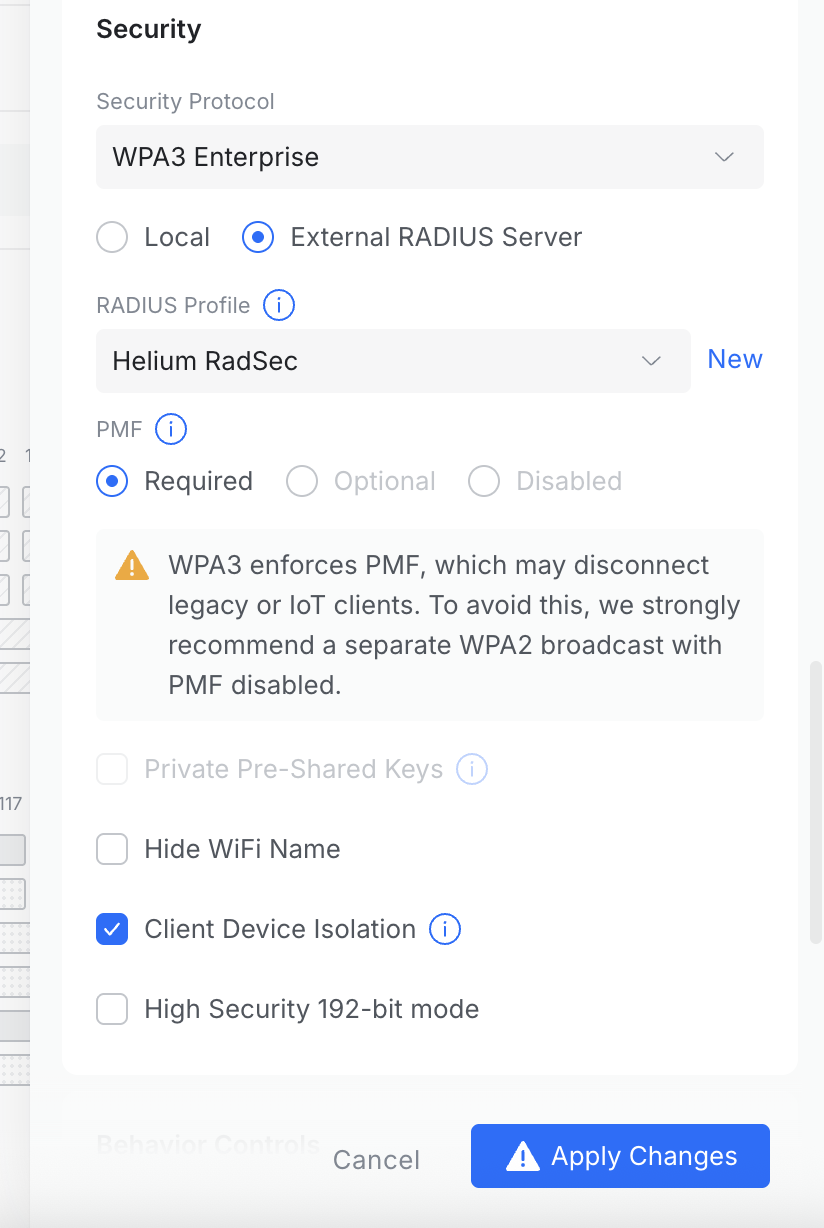
- Under NAS ID, enter the NAS-ID used during Helium onboarding in the Custom field of NAS-ID.
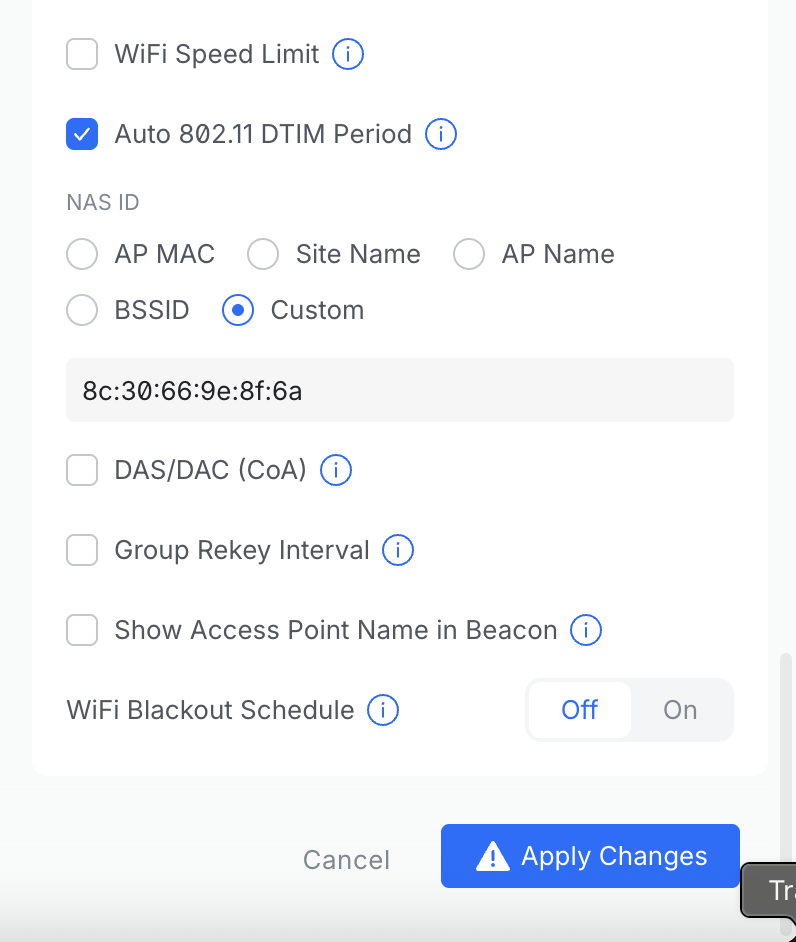
- Ensure Client Device Isolation is checked for secure networking. See the Ubiquiti guide on network and client isolation for more information.
Click Add WiFi Network.
Your Helium SSID is now configured. To verify, forget the existing network on your device and connect to the new network with a device that has a supported carrier, such as Helium Mobile.
Video Walkthrough
Quality Metrics Integration
Quality metrics integration lets Helium read Wi-Fi quality metrics from your UniFi controller over a private WireGuard VPN tunnel. Helium uses these metrics to monitor the Wi-Fi experience carrier subscribers get on your network. Depending on the venue tier and the partner carrier's requirements, this integration may be required. Contact the Helium sales team for details about your site.
Setup has three parts: a view-only metrics user, a WireGuard VPN client, and a firewall policy that allows the metrics poller to reach the controller.
Before you begin, make sure you have:
- UniFi Network 9.0 or higher. The firewall policy uses the zone-based firewall introduced in 9.0.
- A UniFi gateway (UDM, UCG, or UXG). The VPN client and firewall policies run on the gateway, so self-hosted controllers without a gateway can't complete this setup.
- Admin access to the UniFi controller.
- Metrics user credentials (username and password) and a WireGuard configuration file. Request both from your Helium Plus contact.
Create a Metrics User
- Click the People icon at the bottom of the left sidebar.
- Click Create New, then Create New Person. Depending on the controller version, this option may be labeled Add New Person or Create New User.
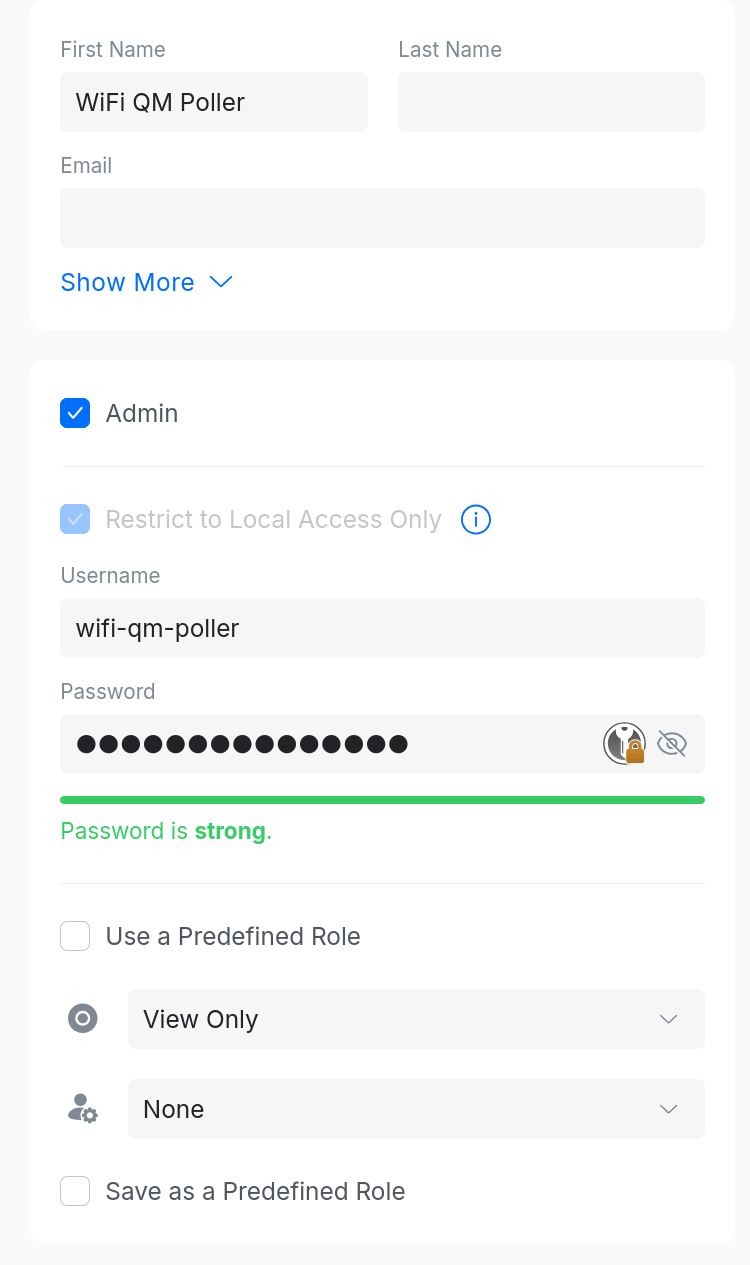
- Enter a First Name, for example "WiFi QM Poller". Leave Last Name and Email blank.
- Check the Admin box.
- Check Restrict to Local Access Only. On some controllers this box is already checked and greyed out.
- Fill in Username and Password with the credentials provided by the Helium team.
- Leave Use a Predefined Role unchecked.
- Select View Only next to the Network app icon.
- Select None for all other apps.
- Click Create.
Configure the WireGuard VPN Client
- Click the Settings icon at the bottom of the left sidebar.
- Open the VPN section.
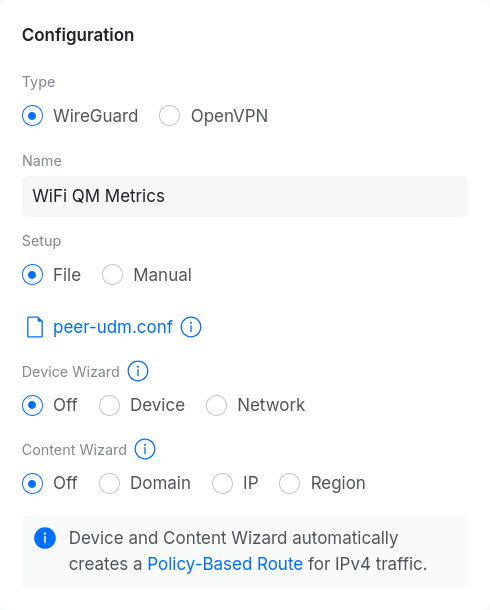
- Select VPN Client and click Create New.
- Make sure the WireGuard type is selected.
- Enter a Name, for example "WiFi QM Metrics".
- Under Setup, select File and click Upload Configuration File to upload the WireGuard configuration file provided by Helium.
- Leave Device Wizard and Content Wizard set to Off. Either wizard creates a policy-based route that can send client traffic through the tunnel.
- Click Create.
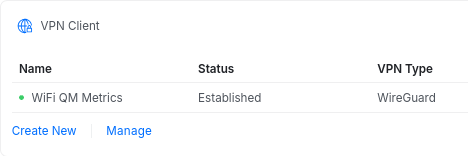
Confirm the connection Status shows Established in the VPN Client list.
Create a Firewall Policy
- Click the Settings icon at the bottom of the left sidebar.
- Under Policy Engine, select Policy Table.
- Click Create New Policy at the top.
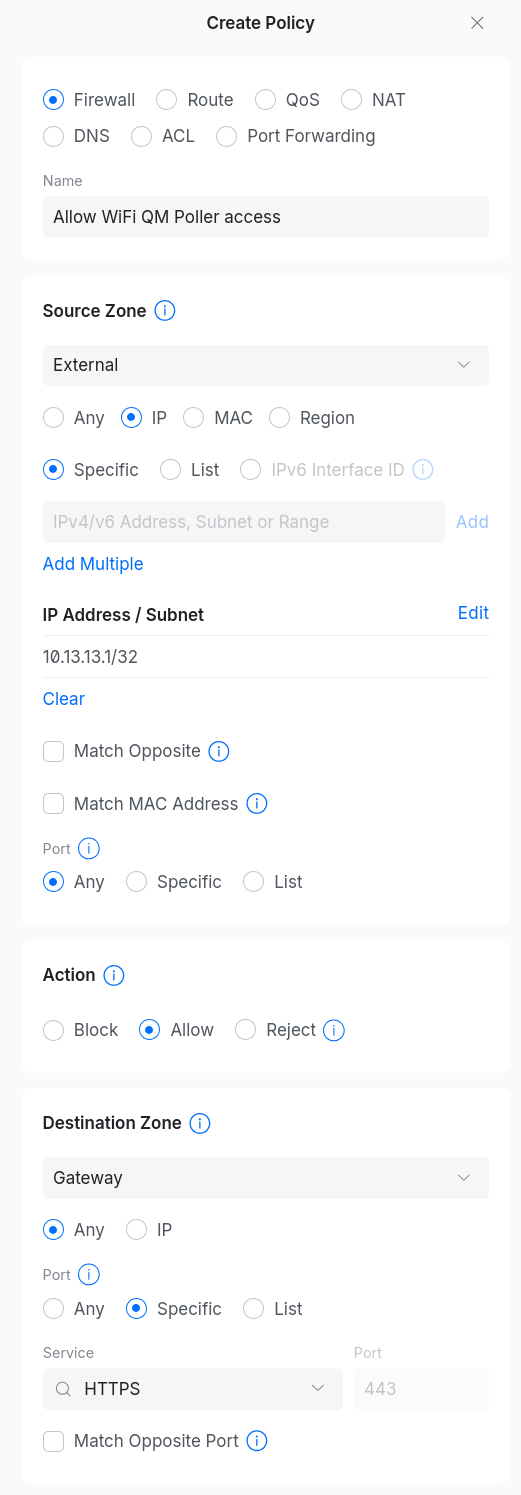
- Make sure Firewall is selected.
- Enter a Name, for example "Allow WiFi QM Poller access".
- Set Source Zone to External and select the IP option.
- Under Specific, add
10.13.13.1/32as IP Address / Subnet. This is the metrics poller's address inside the WireGuard tunnel and is the same for every deployment. - Under Action, select Allow.
- Set Destination Zone to Gateway.
- Under Destination Zone, set Port to Specific and select HTTPS as the Service.
- Click Add Policy.
Notify the Helium Team
Once the VPN client shows Established and the firewall policy is in place, let your Helium Plus contact know that setup is complete. The Helium team will confirm that quality metrics are flowing from your controller.